
Reviewed 03 October 2026 · Android. Approved installer: 0.1.0+28 (R28). Guide labels and screenshots are from the inspected local appearance candidate; device installation and recovery outcomes are not established by these screenshots.
Before you start
Owner or specifically authorized backup access, sufficient storage, and a destination you control. Check whether the device holds the full store or only a partial cache.
Steps
- Open Backup from navigation, then read the Backup & Export coverage and recovery requirements for the current store.
- Select Backup All Data. One action prepares supported store records; it does not include other stores, phone files, passwords or server keys.
- Save the displayed recovery key separately, select Key saved · Continue and use the operating-system destination flow. Check its actual outcome. A canceled destination or opened share sheet is not proof of an independently saved copy.
- Keep the encrypted backup and the separate recovery key safely. Store a copy away from the POS device and protect the recovery material.
- Check the displayed successful backup time, cutoff and destination. Export Records produces readable, unencrypted JSON. Protect it separately; it is not a complete restore archive.
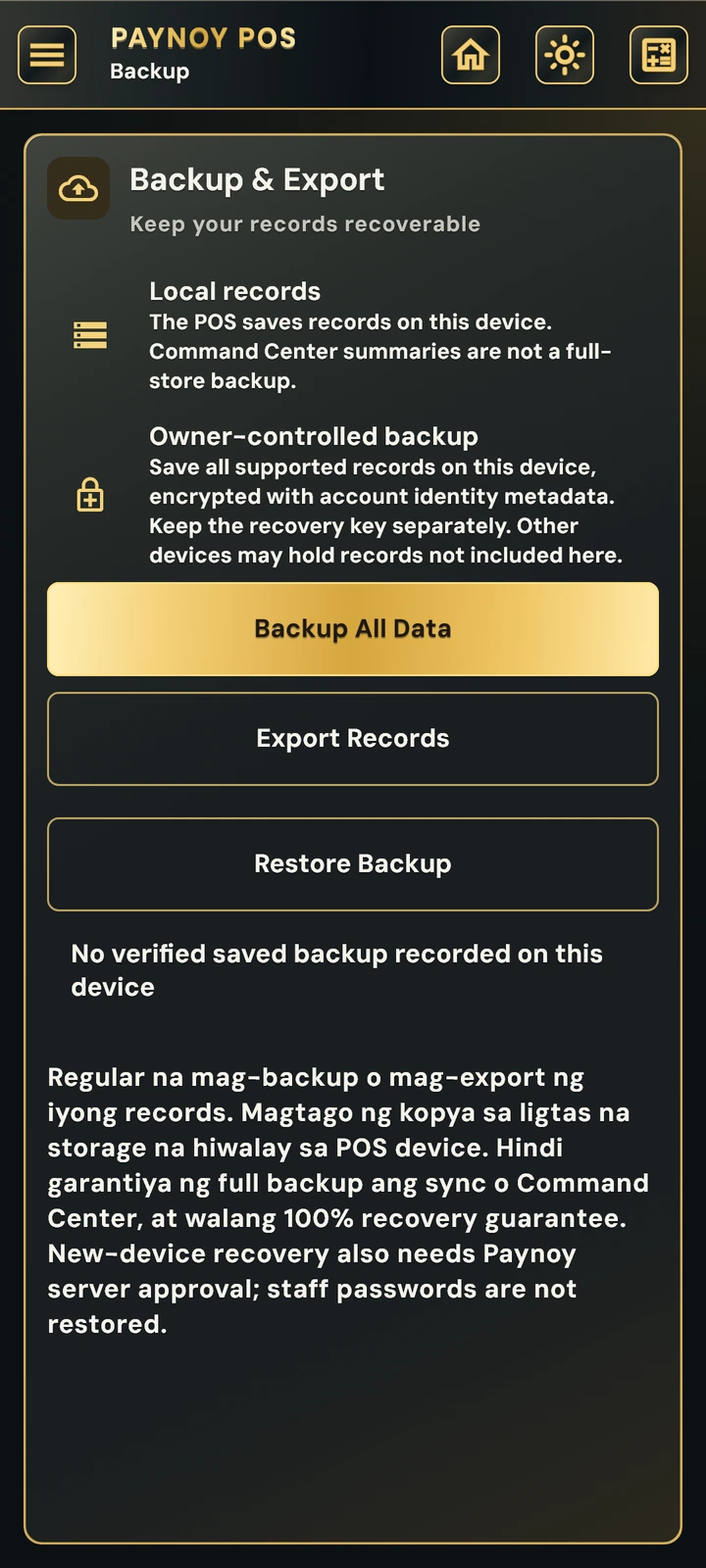
Expected result
The app reports the actual saved/prepared state and coverage. Transactions after the cutoff require another backup.
If something goes wrong
Preserve the last known good copy when a save fails. Sync and Command Center are not guaranteed full backups. Recovery needs a usable compatible copy and its required key/access.
Support-channel information →