
Reviewed 03 October 2026 · Android. Approved installer: 0.1.0+28 (R28). Guide labels and screenshots are from the inspected local appearance candidate; device installation and recovery outcomes are not established by these screenshots.
Before you start
A signed-in authorized user, valid selling access and products with correct prices and stock.
Steps
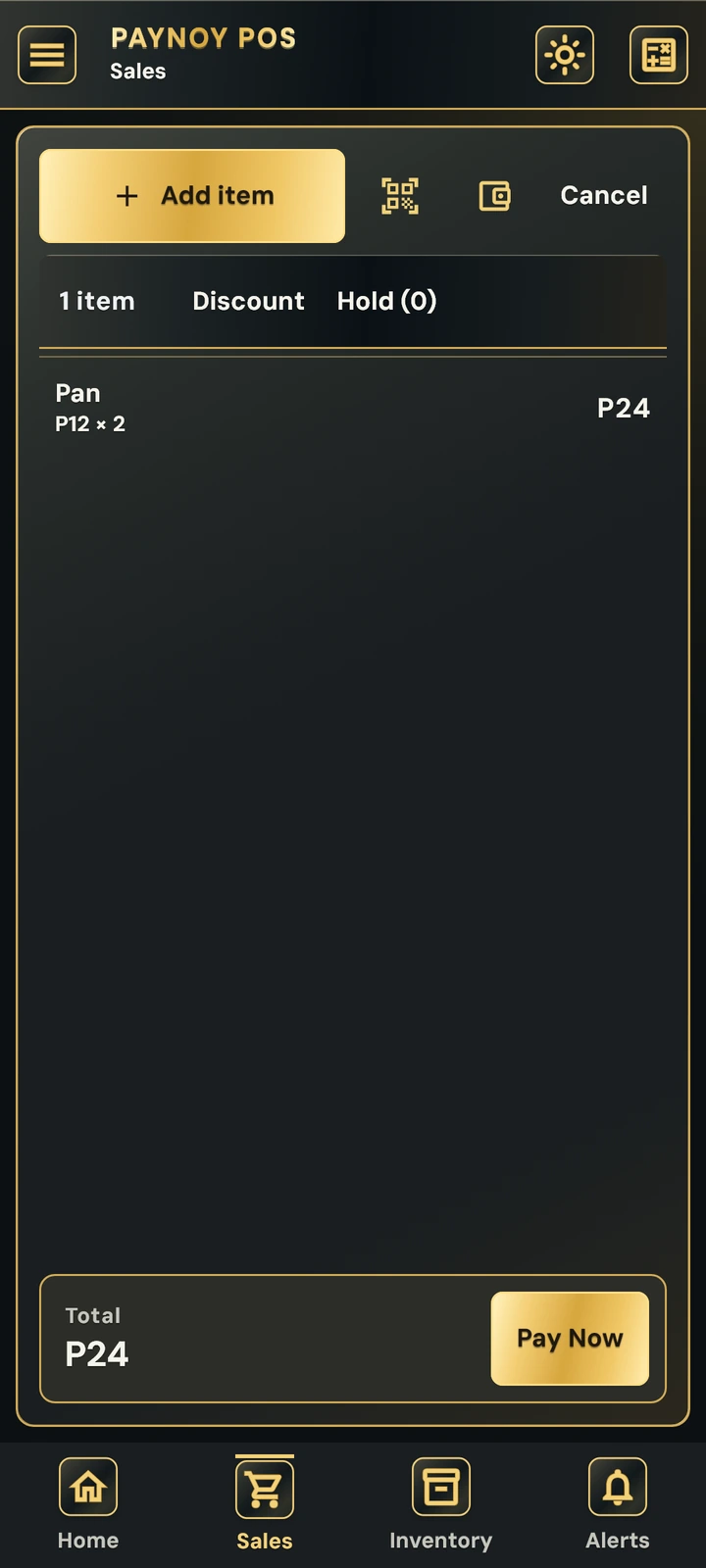
- Choose New sale from Home, or open Sales. Use Add item or the existing scan tools to find the exact product.
- Check each variant and quantity in the cart. Photo or barcode matches still need cashier review; remove any wrong item before payment.
- Check the total, discounts and customer details where required. Select Pay Now to review payment.
- Choose the appropriate available payment record. For Cash, use Exact or enter Cash received; independently check the amount received and change. Utang requires a customer name.
- Choose Confirm only after checking the details, review Confirm Payment, then select Done. Review the saved slip and Receipts history. The disabled E-wallet payment choice is not an integrated money-transfer service.
Expected result
A locally committed sale appears in history with its original receipt identity. Server receipt/sync is a separate status.
If something goes wrong
If confirmation is interrupted, check history before retrying. Do not repeat an external payment because a reply or screen was lost.
Support-channel information →