
Reviewed 03 October 2026 · Android. Approved installer: 0.1.0+28 (R28). Guide labels and screenshots are from the inspected local appearance candidate; device installation and recovery outcomes are not established by these screenshots.
Before you start
An authorized signed-in store user. This guide follows the inspected Paynoy POS local candidate; permissions and the installed release still apply.
Steps
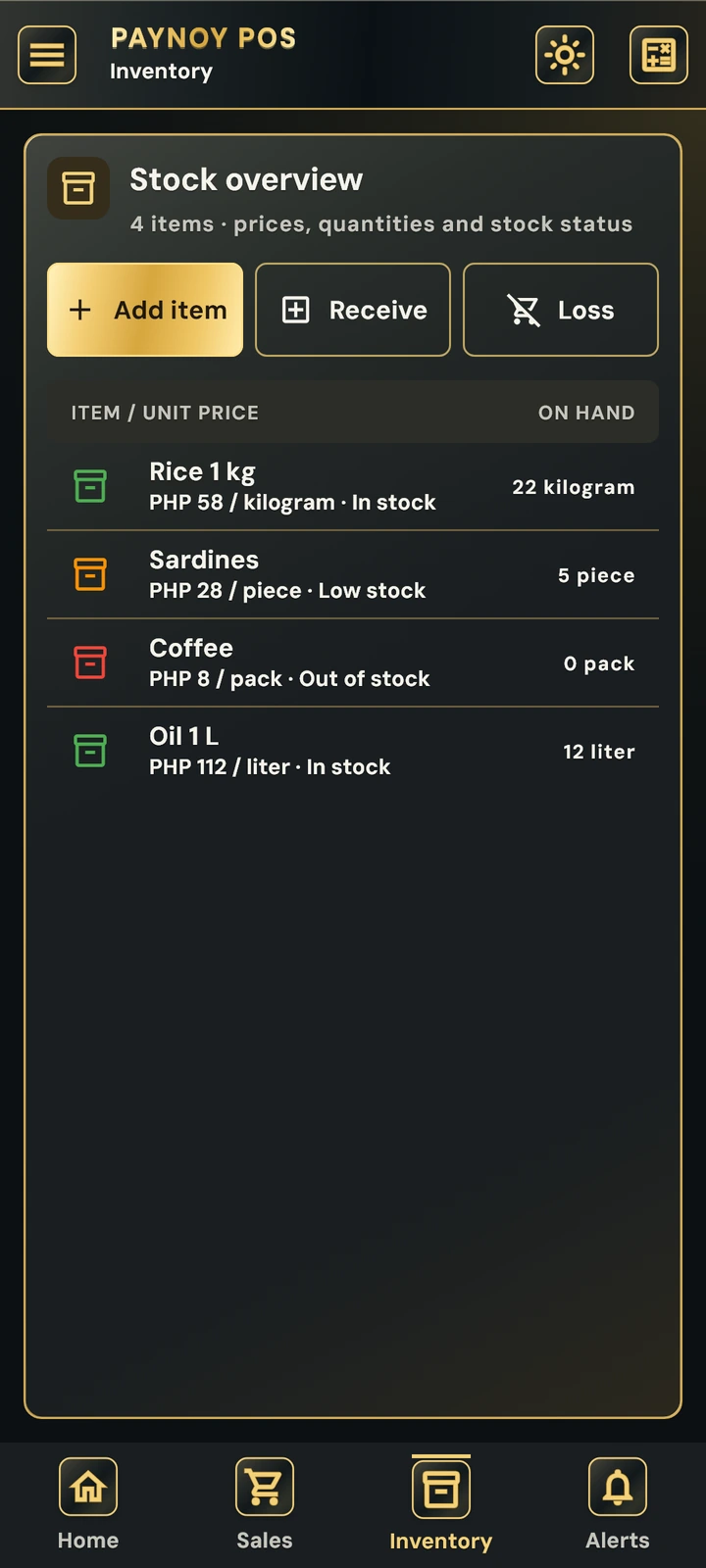
- Open Inventory. Search for the exact product and check its name, variant, selling unit and price.
- Read the recorded stock and low-stock indication. These values reflect the store records, not an automatic physical count.
- Compare the recorded quantity with the actual items. Check saved sales and stock records before correcting a discrepancy.
- Use only the existing stock/product controls allowed for your role. Do not change a price or quantity just to make an unexpected record disappear.
- After an authorized saved change, review the updated item. Pull down to refresh supported Inventory views when needed; local refresh is not proof of server delivery.
Expected result
The selected product shows its recorded quantity and applicable warning, with its original identity retained.
If something goes wrong
If the figures remain unexpected, keep the existing records and request verified assistance through the Owner-provided channel. Do not reset the store or repeat a sale to force a matching count.
Support-channel information →